Shopify page speed and conversion rate: what to monitor automatically

Shopify page speed and conversion rate: what to monitor automatically
Shopify page speed is one of the few store problems a shopper feels before they read a word of your copy. A product page that hangs, a cart drawer that takes a beat too long to open, or a search box that responds after the shopper has already given up are all lost sales that never show up as an error. Most merchants know speed matters. Fewer know what to watch, and almost nobody has time to check it by hand every week.
This guide covers how speed connects to conversion, why slow stores and broken stores usually have the same causes, and which parts of your storefront are worth monitoring automatically so you hear about problems before your customers do.
How Shopify page speed affects your conversion rate
Speed affects conversion in a simple way. Every extra moment of waiting gives a shopper a reason to leave. Someone comparing three stores in three tabs will not wait for yours. A shopper on a mobile connection in a parking lot will not wait either.
The damage is rarely spread evenly across the store. It piles up in a few places where shoppers are close to buying:
Product pages, where large image galleries, review widgets and upsell apps all compete to load
The cart, where shipping calculators, free-shipping bars and cross-sell blocks add scripts
The path into checkout, where any delay or failure costs you a shopper who had already decided to buy
Collection pages with filters, where every filter click has to return results quickly
A slow homepage hurts your first impression. A slow or flaky add-to-cart step hurts revenue directly. That is why the stage of the journey matters more than any single speed score.
Speed scores versus what shoppers experience
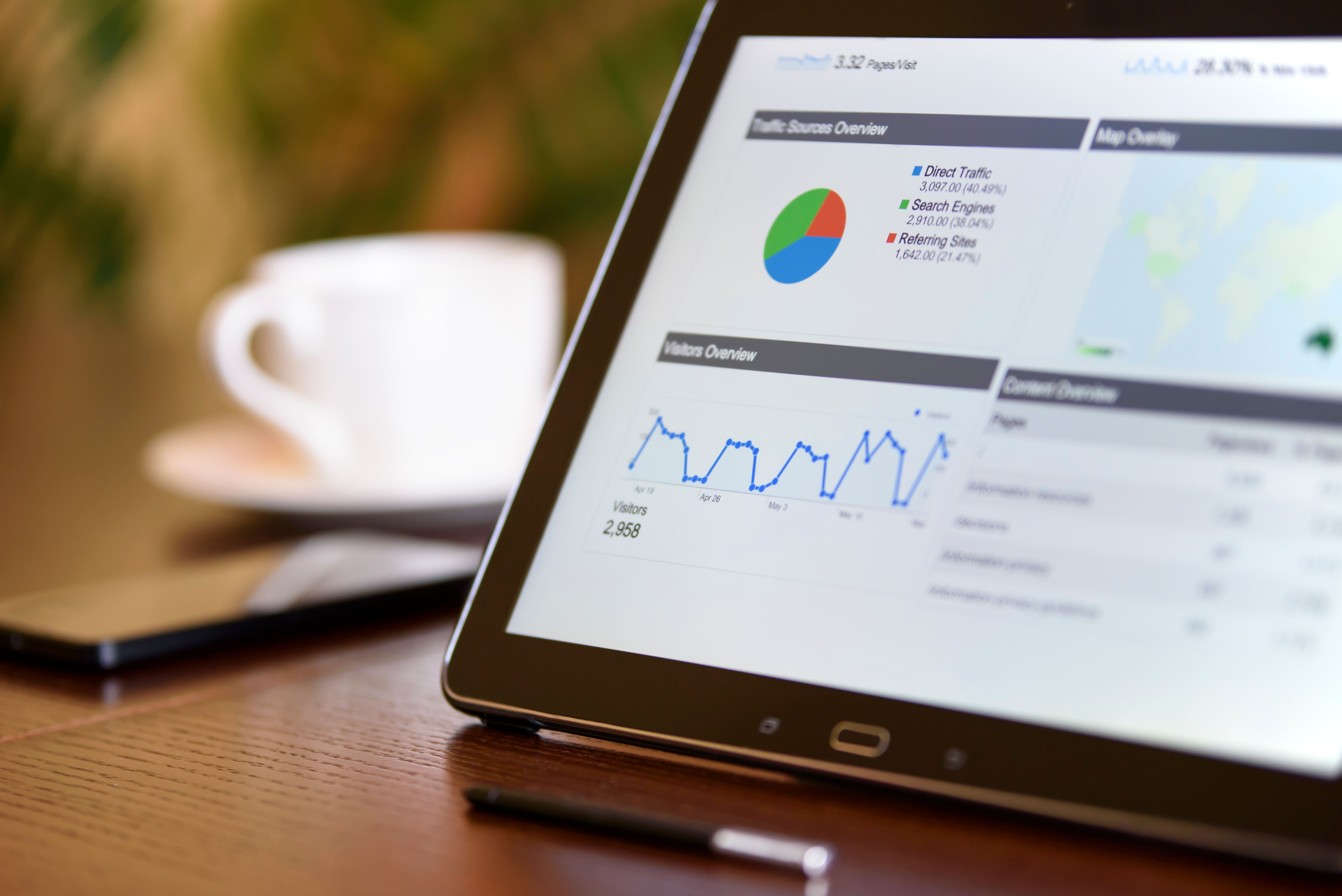
Shopify's web performance reports and Google's Core Web Vitals give you a useful baseline. They measure things like how fast the main content appears, how quickly the page responds to a tap and how much the layout jumps around while loading. Check them regularly.
They have limits, though. A good score on your homepage tells you nothing about whether the quantity selector on your best-selling product still works. Shoppers don't experience scores. They experience a journey: land, browse, filter, pick a variant, add to cart, check out. If any step breaks or stalls, the score is irrelevant.
Why slow stores and broken stores have the same causes
When a Shopify store gets slower, there is usually a recent change behind it. The same changes that slow a store down are also the ones most likely to break it.
App installs and app updates
Every app that injects code into your storefront adds weight. Some load scripts on every page even when they only do something on one. Apps also update on their own schedule. A review app pushes a new version, and suddenly your product gallery renders differently on mobile or a button sits under an overlay. You didn't change anything, but your store did.
Theme edits and theme updates
Theme work is where a lot of regressions start. A developer adds a section, swaps a slider, or updates the theme to a new version. The page might look fine on desktop in the theme editor and still fail on a phone, where the menu won't open or the variant picker stops updating the price.
Merchandising and content changes
New collections, renamed products, removed pages and campaign landing pages all create opportunities for broken links and empty filter results. These don't always slow the page, but they waste the traffic you paid for. A shopper who clicks an ad and lands on a 404 has the same outcome as one who waited too long: no sale.
The takeaway for merchants: if you only watch speed numbers, you will catch some problems late and miss others entirely. Watch the journeys too.
What to monitor automatically on your Shopify store
Manual checking works for a week or two, then real work takes over. Automated monitoring keeps running when you are busy, which is exactly when changes slip through. Here is where to focus.
Your checkout journey
This is the first test to automate. It should go from product page to cart to checkout, the same way a real shopper would. If anything in that chain fails after an app update or theme change, you want to know within hours, not after a week of weaker sales. Shoptest test flows simulate this journey on a schedule, so the check runs whether or not anyone remembers to do it.
Cart editing and quantity changes
Shoppers change quantities, remove items and add things from the cart drawer. These interactions depend on scripts that apps and themes often touch. A quantity selector that silently fails is the kind of bug that can sit in a store for weeks, because the store owner never tries to buy three of something.
Search and collection filters
Shoppers who search often know what they want, so a broken search costs you some of your most ready-to-buy traffic. Filters matter just as much on stores with large catalogs. Automated tests can confirm that search returns results and that filters on a collection still narrow the products as expected.
Mobile navigation and product image galleries
Most problems that slip past a desktop review show up on mobile. A menu that won't open, a gallery that won't swipe, or a quick add-to-cart button that does nothing are all common after theme changes. Shoptest includes test flows for mobile navigation, product image galleries and quick add to cart, so these get checked on a schedule instead of when someone happens to grab their phone.
Broken links across the store
Scheduled broken-link scans catch 404s from removed products, renamed collections and outdated navigation. Run them after big merchandising changes and before campaigns, and keep a regular schedule for everything in between.
Shopify and third-party services
Sometimes the problem isn't your store at all. Shopify or an app you depend on has an incident, and your storefront feels it. Shoptest monitors Shopify and selected third-party services that matter to storefront operations, so when something looks wrong, you can quickly tell whether the cause is your change or an outside outage.
What to do when a check fails
Monitoring only helps if someone can act on the alert. A test that says "checkout failed" with no context sends you straight back to manual digging.
When a Shoptest test fails, AI-assisted failure diagnosis explains what broke and suggests how to fix it. If the failure came from a legitimate store change, such as a renamed button or a moved element, the AutoFix workflow can attempt to update the test and verify the repair. That keeps your test coverage accurate as the store changes, without someone rewriting tests by hand after every theme edit.
Pair this with a simple habit. When an alert fires, look at what changed in the last day or two: app updates, theme publishes, new collections. Nine times out of ten, the answer is in that list.
Building a speed and reliability routine that sticks
You don't need a QA department to protect your store. You need a short routine and automation doing the repetitive part.
Review Shopify's web performance report on a regular schedule and note any sudden drops
Keep automated test flows running on checkout, cart, search and mobile navigation
Run a broken-link scan after merchandising changes and before every campaign
After installing or removing an app, check that your test flows still pass
Before a big sale, confirm every critical customer journey is green
Speed work and reliability work belong together. Trimming an unused app can make the store faster and remove a source of breakage at the same time. Catching a broken gallery early protects both conversion and the ad spend driving people to that page.
Protect the journeys that pay the bills
Shopify page speed shapes your conversion rate, but it is only part of the picture. The changes that slow your store down are the same ones that break checkout, cart and search, and shoppers punish both the same way. Keep an eye on your performance reports, and let automated monitoring handle the journeys you can't check by hand every day.
If you want that continuous verification without building a testing setup from scratch, start with Shoptest. Set up a checkout test flow, schedule a broken-link scan, and you'll hear about the next storefront issue before your customers do.